
How to turn a long video into vertical clips with animated subtitles
The short answer
Upload the video. In the Style tab, set the format to 9:16 and pick an animated subtitle preset. In the Highlights tab, click AI Generate to find the best moments. Tick the ones you want, then click Export, open the Video tab and click Clips. Each clip comes out as its own vertical video.
By Subtitle AI · Updated
- Time
- About 15 minutes, plus render time
- Before you start
- A long video, such as an interview, a talk or a podcast with video.
- A rough idea of the topics you want clips about. You can type this into the highlight prompt.
- Credits to render. The export window shows what a full-video render costs. Clips cost less, because they are shorter.
Step 1 of 7
Upload the long video
Open the projects page and click Upload.
Drop your video in the window.
Pick the spoken language, then click Upload.
Long files take longer to process. The project shows Ready when it is done.
app.subtitle.aiUploadDrop your files hereVideo, audio or subtitle filesSpoken languageDutchPresetApply presetUploadDrop the file, pick the language, upload.
Step 2 of 7
Crop the video to vertical
Open the project and click the Style tab.
Open the format menu at the top of the panel. It shows 16:9.
Choose 9:16.
The preview turns into a tall frame, and your wide video is cropped to fill it. The crop is centered, so check that the speaker is not cut off. What you see in the preview is what gets rendered.
app.subtitle.aiInterview with MarieSubtitlesExportStyleHighlightsStyle9:1616:9Landscape1:1Square9:16Vertical3:4PortraitPresetsAllAnimatedWord highlightCleanPopKaraokeBoxed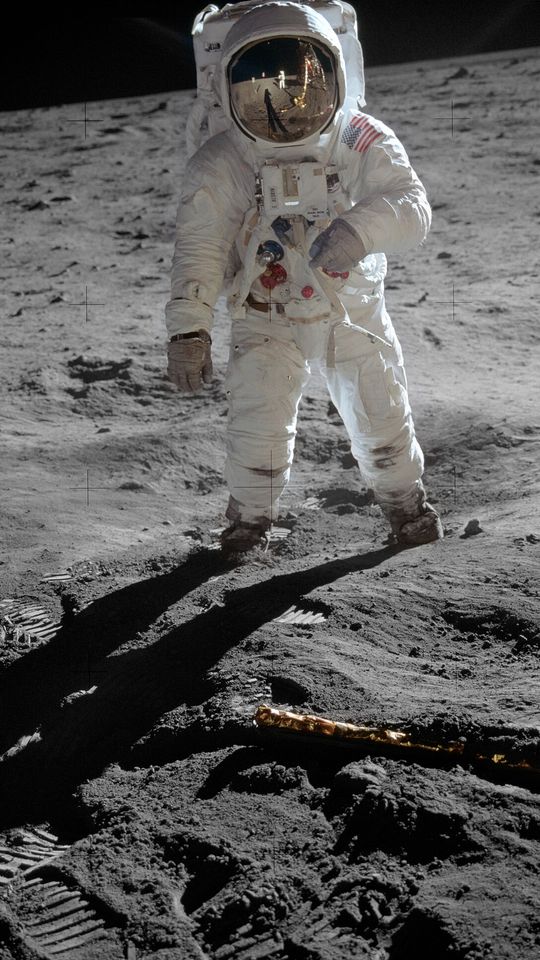 Thisisthemoment
Choose 9:16 in the format menu, then check the preview. Still: Apollo 11 (NASA, 1969), public domain.
Step 3 of 7
Pick animated subtitles
In the same tab, find the presets.
Click the Word highlight filter to see presets that light up each word as it is spoken. The Animated filter shows every preset that moves.
Click a preset to apply it.
Phone screens are narrow, so short lines work best. The preview shows how the subtitles look in the vertical frame.
app.subtitle.aiInterview with MarieSubtitlesExportStyleHighlightsStyle9:1616:9Landscape1:1Square9:16Vertical3:4PortraitPresetsAllAnimatedWord highlightCleanPopKaraokeBoxedThisisthemomentFilter for word-highlight presets, then click one.
Step 4 of 7
Let AI find the highlights
Click the Highlights tab.
Click AI Generate.
Read the prompt. Change it if you want clips about one topic.
Click Generate Highlights.
Subtitle AI reads the transcript and picks the moments that work on their own. Each one gets a start time, an end time, a title and a description. Generating highlights uses credits.
app.subtitle.aiInterview with MarieSubtitlesStyleExportHighlights✦ AI Generate+ New HighlightWhy we stopped using templates04:12–04:58The mistake everyone makes11:30–12:21What I would do differently31:05–31:49A question from the audience40:10–40:36TitleWhy we stopped using templatesDescriptionTemplates saved time at first, then every video looked the same.Click AI Generate, then review the list.
Step 5 of 7
Edit the titles and descriptions
Click a highlight in the list.
Edit its Title and Description.
Under Social Media, click Add Platform to write a post for each platform you use.
Use the title and description as the text for your post. They are saved with the project, so you can copy them when you upload each clip.
app.subtitle.aiInterview with MarieSubtitlesStyleExportHighlights✦ AI Generate+ New HighlightWhy we stopped using templates04:12–04:58The mistake everyone makes11:30–12:21What I would do differently31:05–31:49A question from the audience40:10–40:36TitleWhy we stopped using templatesDescriptionTemplates saved time at first, then every video looked the same.Pick a highlight, then edit its title and description.
Step 6 of 7
Render the clips
In the Highlights tab, tick the highlights you want to render.
Click Export.
Open the Video tab.
Click Clips. The number in brackets is how many clips you ticked.
Ticks are cleared when you leave the Highlights tab, so tick just before you export. Ticked chapters are rendered as clips too. The render runs in the background; follow it on the Renders page. Free accounts get a small subtitle.ai mark on the video until the first purchase.
app.subtitle.aiExport optionsSubtitlesDocumentVideoVideo and clipsStart renders and manage generated video files.The render runs in the background. It appears below and on the renders page once started.Export full video✂ Clips (3)Open the Video tab, then click Clips. Only ticked clips are rendered.
Step 7 of 7
Download and post
Open the Renders page.
Download each finished clip.
Paste the title and description into your post.
Renders EveryvideolookedthesameWhy we stopped using templates
 NobodychecksthecaptionsThe mistake everyone makes
 IwouldstartwithaudioWhat I would do differently
Each highlight becomes its own vertical video. Stills: A Trip to the Moon (1902), Nosferatu (1922), The Kid (1921). All public domain.
What the vertical crop does, and what it does not
The 9:16 format is 1080 by 1920 pixels. It is the shape used by Instagram Stories, TikTok and YouTube Shorts.
Subtitle AI crops from the center of the picture. It does not follow the speaker. If the speaker sits to one side of the frame, check the preview before you render, because they may be cut off.
A video that is already shot with the speaker in the middle works best.
Common questions
How do I turn a horizontal video into a vertical video?
- Open the project, go to the Style tab and set the format to 9:16. The video is cropped from the center to fill the tall frame. The preview shows what the render will look like.
Can AI pick the best moments from a long video?
- Yes. In the Highlights tab, click AI Generate and then Generate Highlights. It reads the transcript, proposes moments, and gives each a title and description. You can edit, add or delete them.
Can I render only some of the highlights?
- Yes. Tick the highlights you want, then click Clips in the Video tab of the export window. Only the ticked ones are rendered.
How do I get subtitles that highlight each word?
- In the Style tab, use the Word highlight filter in the presets. Pick one, and check it in the preview.
Do the clips come with a title and description?
- Each highlight has a title, a description and optional social media descriptions, saved with the project. You copy them into your post. They are not burned into the video. The title is also used in the name of each clip file.
Does Subtitle AI follow the speaker when it crops to vertical?
- No. The crop is taken from the center of the picture. Check the preview and, if the speaker is off to one side, expect them to be cut off.
Which platforms use 9:16 video?
- Instagram Stories, TikTok and YouTube Shorts. The format is 1080 by 1920 pixels.
Can I make vertical clips from a podcast?
- Yes. With a video file, the clips show the speakers. With an audio file, the project uses a podcast layout with a waveform and subtitles, which you can also set to 9:16. Check it in the preview before you render.